
Android Handheld Terminal Deployment: MDM, Updates and App Compatibility

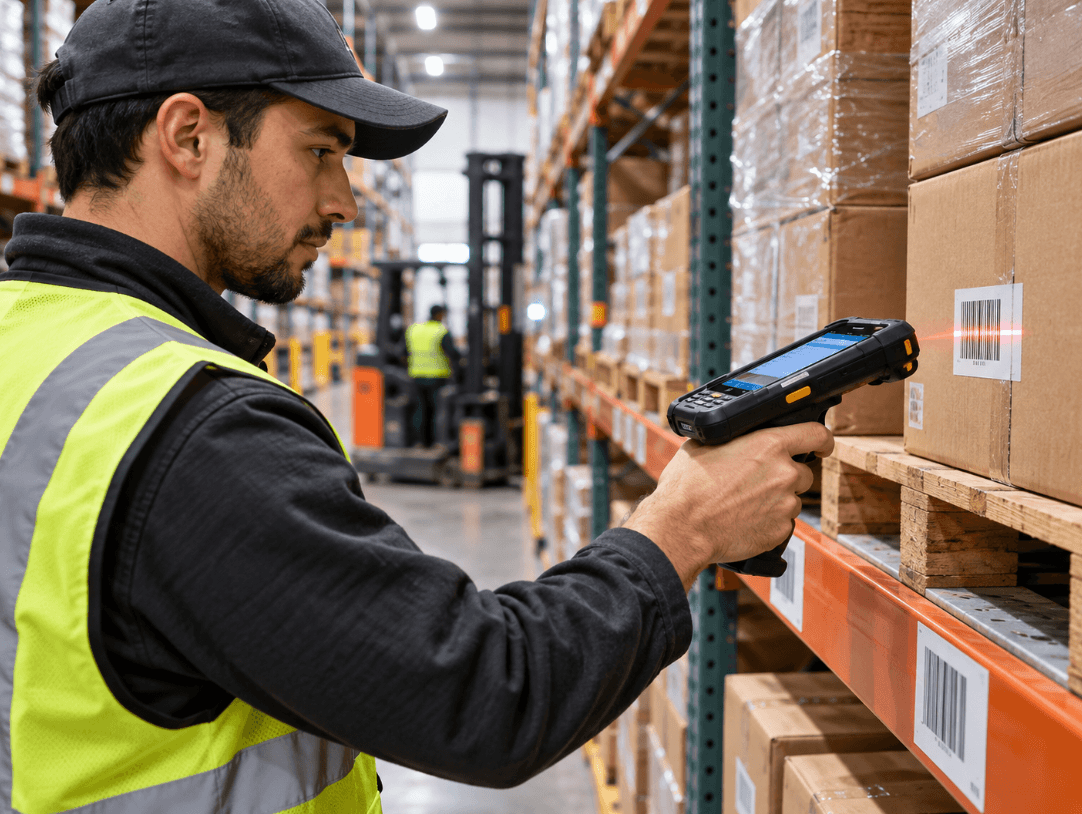
Successful Android handheld terminal deployment requires more than installing business applications on a group of devices. IT teams must configure device management, verify application compatibility, control operating system updates, and test scanning, connectivity, and data synchronization before terminals enter daily operation.
In warehouses, distribution centers, and manufacturing facilities, a configuration problem can affect an entire shift. An application may install correctly but fail to communicate with a barcode scanner, connect to the company network, or preserve work when connectivity is interrupted.
A reliable deployment process addresses these dependencies before devices reach frontline employees.
What Needs to Be Configured Before Deployment?
An Android handheld terminal typically combines an operating system, touchscreen, wireless connectivity, and, depending on the model, a barcode scanning engine or other specialized hardware.
Each component introduces a compatibility requirement. The application must support the Android version, the device must expose the necessary hardware interfaces, and the management system must be able to enforce the intended policies.
Start by documenting the deployment environment:
- Android version and manufacturer-specific software.
- Required warehouse, ERP, inventory, or field service applications.
- Barcode symbologies and scanning interfaces.
- Wi-Fi, cellular, VPN, and authentication requirements.
- User permissions and security policies.
- Battery, charging, and shift requirements.
- Update, replacement, and recovery procedures.
This inventory becomes the baseline for testing and future troubleshooting.
For example, a warehouse terminal used exclusively for inventory transactions may require a restricted interface and a small application set. A field service terminal may need navigation, camera access, offline storage, and several business applications.
Kroniix’s handheld terminal range provides a starting point for reviewing mobile computing options. Models such as the RS53, RS50, and R366-S can be evaluated against the intended workflow, but their current operating system versions, scanning configurations, and management capabilities should be confirmed individually.
How MDM Controls Android Handheld Terminals
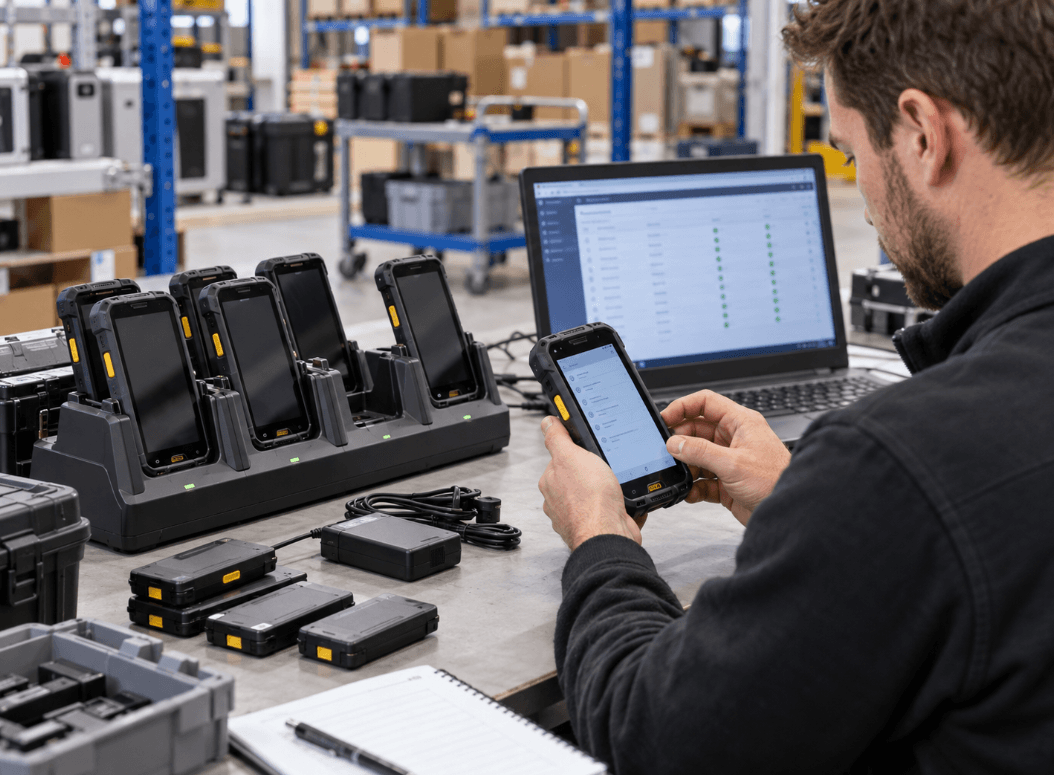
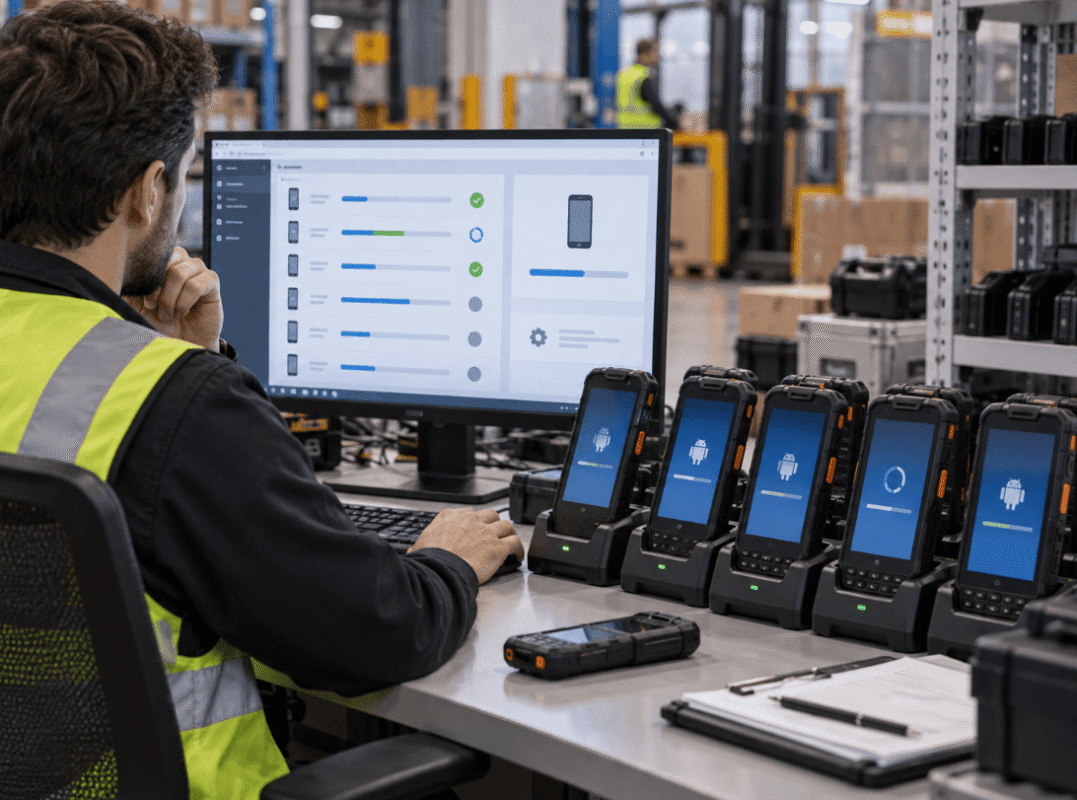
Mobile device management (MDM) allows administrators to configure, monitor, and manage deployed devices from a central system.
In Android environments, enterprise management commonly uses Android Enterprise-compatible management solutions, often described as enterprise mobility management (EMM) platforms.
Depending on the management mode and device capabilities, administrators may be able to:
- Distribute approved applications.
- Configure Wi-Fi and other network settings.
- Enforce screen-lock and security policies.
- Restrict access to selected applications.
- Apply managed application configurations.
- Remotely lock or wipe eligible devices.
- Monitor compliance and device status.
Google’s Android Enterprise documentation explains how managed configurations and dedicated-device capabilities support enterprise deployments.
Choose the Right Management Mode
The management model should reflect device ownership and how employees use the terminal.
| Deployment Model | Typical Use | Management Consideration |
|---|---|---|
| Fully managed device | Company-owned terminal used for work | Central control over device settings and applications |
| Dedicated device | Terminal restricted to specific operational tasks | Kiosk-style interface and approved application access |
| Work profile | Work applications separated from personal use | Separate work data and policies |
For shared warehouse terminals, a dedicated-device configuration may be appropriate when employees should access only approved operational applications.
Android supports dedicated devices for use cases including inventory management, field service, transport, and logistics. See Google’s dedicated-device overview.
A dedicated configuration is not always necessary. If employees need multiple business applications and ordinary device functions, a fully managed deployment may offer a better fit.
The important distinction is that MDM does not automatically make every application compatible. It controls supported device settings and deployment policies; application behavior still requires testing.
App Compatibility: Why Installation Is Only the First Test
An application can install successfully and still be unsuitable for an enterprise handheld terminal.
The most common problems involve operating system requirements, hardware integration, authentication, network access, and application behavior under real workloads.
Check Android Version and Application Requirements
Begin with the application’s documented minimum Android version and supported device configurations.
Then verify whether the application relies on Google Play services, specific system components, particular processor architectures, or manufacturer-specific APIs.
This matters when comparing handheld terminals with different software images or regional configurations.
Google explains that Android enterprise features support business applications, including managed configurations and dedicated-device use cases, in its Android Enterprise developer guide.
However, enterprise management support does not guarantee that every third-party application will behave identically on every device.
Test the Barcode Scanning Interface
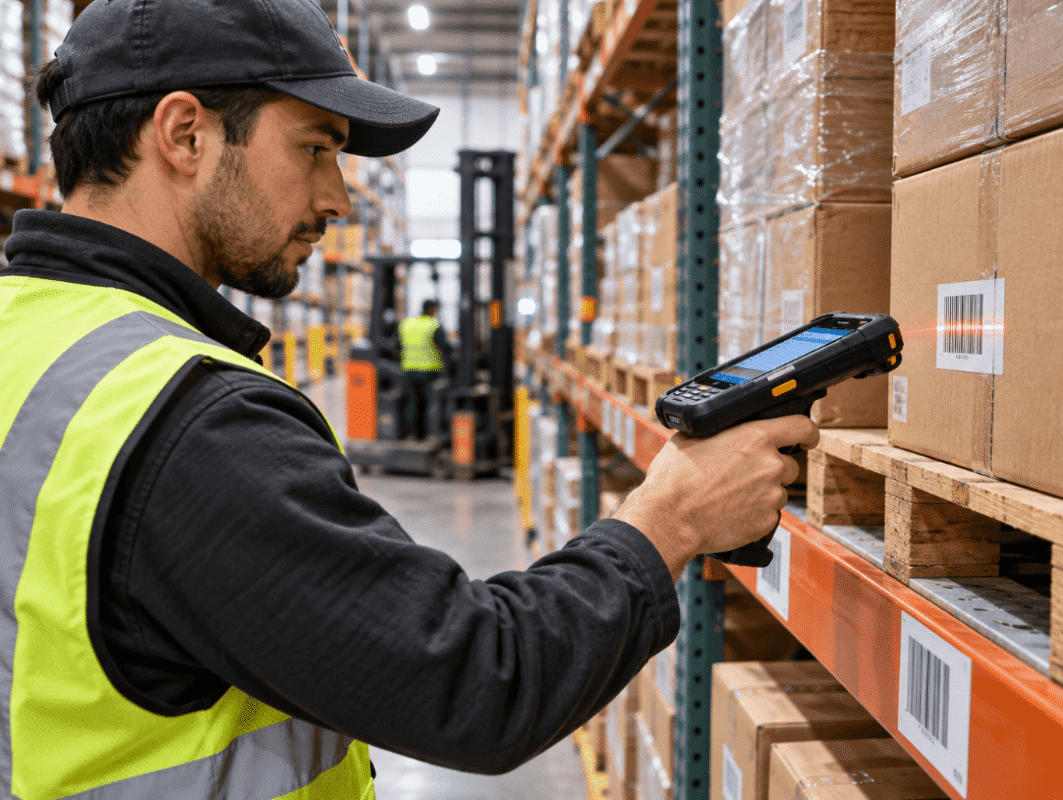
Barcode scanning is a particularly important compatibility check for warehouse and logistics terminals.
Different devices may expose scanning data through different mechanisms, such as keyboard input, an SDK, an intent-based interface, or a manufacturer-specific service.
If an application expects one method but the terminal uses another, scans may fail, arrive in the wrong field, or include unexpected characters.
A useful test should verify:
- Correct decoding of the required 1D and 2D symbologies.
- Data delivery to the intended application field.
- Correct handling of prefixes, suffixes, and Enter or Tab events.
- Reliable scanning during rapid consecutive transactions.
- Behavior when a barcode is damaged or cannot be read.
- Recovery after the application is restarted.
For specialized deployments, confirm that the terminal manufacturer provides the necessary SDK, documentation, and supported interface.
The Kroniix handheld terminal portfolio can help identify candidate hardware, while the exact model’s documentation should establish which scanning features are available.
Validate Network and Offline Behavior
Warehouse applications often depend on Wi-Fi coverage across aisles, loading areas, and storage zones.
A terminal may work correctly near an access point but lose connectivity in a distant aisle or behind dense shelving.
Test login, database access, transaction submission, and roaming between access points. If the application supports offline operation, verify how it stores records and synchronizes them later.
The goal is to confirm that temporary network interruptions do not silently discard inventory changes or create duplicate transactions.
Android Updates: Security Without Disrupting Operations
Operating system updates and application updates serve different purposes.
An Android system update may contain security fixes, platform changes, driver changes, or other device-specific modifications. An application update may change business logic, user interfaces, permissions, or scanning behavior.
Both can affect operational reliability.
Why Updates Need a Controlled Schedule
Installing updates immediately across every terminal can introduce avoidable risk.
For example, a new application version might change barcode input behavior or require a newer Android API. A system update may also affect a peripheral or a manufacturer-specific service.
A controlled rollout reduces the chance that one compatibility issue will interrupt an entire operation.
A practical update process includes:
- Reviewing release notes and known issues.
- Testing updates on representative devices.
- Verifying scanning, connectivity, and critical transactions.
- Rolling out to a limited group first.
- Expanding deployment after the pilot passes.
- Recording failures and maintaining a recovery plan.
For time-sensitive operations, schedule major changes outside peak receiving, picking, or shipping periods where possible.
Google’s dedicated-device management guidance describes controls for managing system updates on supported dedicated-device configurations.
The available controls depend on Android version, management mode, and device implementation. Do not assume every MDM product can defer every update indefinitely.
Confirm the Manufacturer’s Support Policy
Long-term deployment planning should include the manufacturer’s Android upgrade and security update commitments.
Ask for documented information covering:
- Current Android version.
- Planned operating system upgrades.
- Security patch availability.
- End-of-support expectations.
- Firmware distribution and installation procedures.
- Compatibility support for scanning hardware and peripherals.
A terminal that works well today may become difficult to maintain if its security updates end while the organization still depends on it.
A Deployment Workflow for Warehouse and Industrial Teams
A repeatable deployment process helps prevent configuration drift between devices.
For a new fleet, use the following sequence.
- Prepare a reference configuration. Set up network access, approved applications, permissions, scanning behavior, and device restrictions on one test terminal.
- Validate the complete workflow. Run real receiving, picking, inventory, or inspection transactions rather than checking only whether the application launches.
- Enroll and provision devices. Use a supported enrollment method to apply the approved management configuration consistently.
- Test update behavior. Verify application distribution, system update controls, reboot behavior, and recovery procedures.
- Roll out in stages. Start with a limited group representing different users and operating areas.
- Monitor operational issues. Track scan failures, application crashes, login problems, network interruptions, and battery complaints.
- Document recovery. Define how to reset, re-enroll, replace, or restore a terminal without losing business data.
This workflow is particularly valuable when several terminal models or Android versions are used across the same operation.
Conclusion
Reliable Android handheld terminal deployment depends on the relationship between device management, application compatibility, operating system support, and the actual work performed on the terminal.
MDM can standardize configurations and control access, but it cannot replace end-to-end application testing. Updates must be validated against scanning, connectivity, and business transactions before broad release.
For warehouse and industrial teams, the strongest deployment process is one that can be repeated consistently, monitored centrally, and recovered quickly when a device fails.
The result is not simply a fleet of configured terminals. It is a mobile system that supports daily operations without introducing avoidable interruptions.
FAQ
What is MDM in Android handheld terminal deployment?
MDM is a way to manage devices centrally, including supported application distribution, security policies, network configuration, and device restrictions. Available functions depend on the management platform and enrollment mode.
Can one Android application run on every handheld terminal?
No. Compatibility depends on Android version, hardware interfaces, system services, processor architecture, and application requirements. Test the actual application on each intended device configuration.
How should companies test Android updates?
Use a pilot group and verify critical functions before expanding deployment. Testing should include barcode scanning, application login, network access, transaction submission, and peripheral connections.
Can Android handheld terminals operate without Wi-Fi?
Some applications support offline workflows, but this depends on their design. Confirm local data storage, transaction queuing, and synchronization behavior before relying on offline operation.
What should IT teams check before buying handheld terminals?
Confirm supported Android versions, security update commitments, MDM compatibility, scanning interfaces, application requirements, connectivity, and available technical documentation.
Why can a barcode scanner stop working after an app update?
An update may change input handling, permissions, SDK integration, or application field behavior. Test scanning after each significant application or system change.